Laptop Overheating? Causes, Risks & Fixes in Sacramento
Laptops run hot. That's just the nature of packing powerful hardware into a thin chassis with limited airflow. But there's a significant difference between a laptop that gets warm during heavy use and one that's genuinely overheating — and crossing that line has serious consequences.
At MNM Computers in Citrus Heights, we repair overheating laptops from customers across the Sacramento area every week. Some come in after a simple cleaning fixes everything. Others come in after ignoring the problem for too long and paying a much higher price for it. Here's everything you need to know.
Warning Signs Your Laptop Is Overheating
Your laptop will usually give you clear warning signs before a serious failure occurs. Don't ignore these:
Random Shutdowns Without Warning
If your laptop suddenly powers off during use — especially under load like gaming, video editing, or even extended web browsing — this is almost always a thermal protection shutdown. Modern laptops are programmed to cut power abruptly when the CPU or GPU reaches a critical temperature threshold, in order to prevent permanent hardware damage. This is the most urgent warning sign.
Extremely Hot Bottom Case
A warm bottom is normal. A laptop that's too hot to comfortably rest on your lap, or that feels dangerously hot to the touch near the vents, is not. Sustained extreme surface temperatures indicate that the internal cooling system is not effectively moving heat out of the chassis.
Fans Running at Full Speed Constantly
Laptop fans should spin up during demanding tasks and then quiet down when the CPU cools. If your fans are running at full volume constantly — even when you're just browsing the web or typing a document — the cooling system is working overtime and struggling to keep up. Constant fan noise is a sign the thermal management is failing.
Performance Throttling and Slowdowns
When a CPU or GPU gets too hot, it automatically reduces its clock speed to generate less heat — this is called thermal throttling. You'll experience this as sudden, noticeable slowdowns during tasks that used to run smoothly. Video stutters, games drop to unplayable frame rates, and even basic tasks feel sluggish. If your laptop slows down dramatically after 10–15 minutes of use and then recovers after a rest period, thermal throttling is the likely culprit.
Blue Screen of Death (BSOD) or System Crashes
Overheating doesn't just cause shutdowns — it can cause system instability that manifests as blue screens, memory errors, and application crashes. If your laptop is running hot and you're also seeing unexpected crashes or BSODs, heat stress on the components is a strong suspect that should be ruled out before any software troubleshooting.
4 Most Common Causes of Laptop Overheating
1. Dust-Clogged Vents and Fans
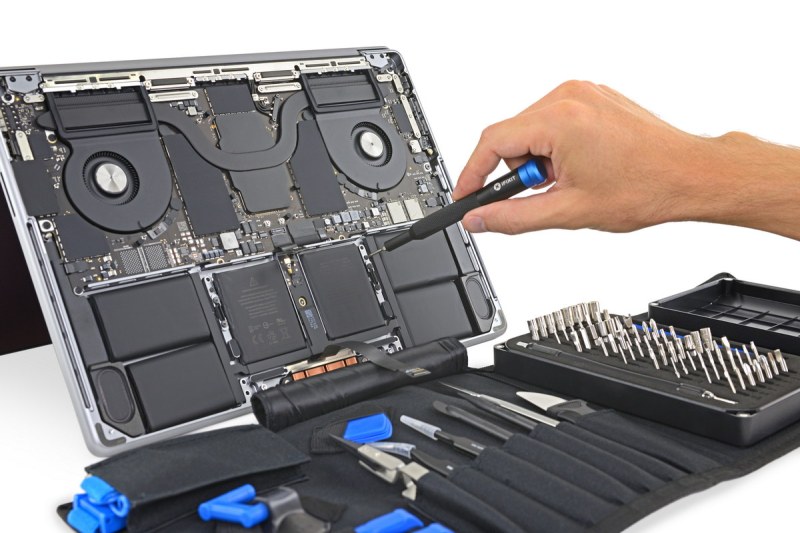
This is the number one cause of laptop overheating by a wide margin. Laptops draw air in through intake vents (usually on the bottom or sides) and exhaust hot air through vents on the sides or rear. Over months and years, dust, pet hair, and debris accumulate on the fan blades and — critically — forms a dense mat on the heat exchanger fins that blocks airflow entirely. A laptop that ran cool when new can become a thermal emergency after 2–3 years of normal use simply from dust accumulation. The fix requires opening the laptop and physically cleaning the cooling system.
2. Dried-Out Thermal Paste on CPU and GPU
Thermal paste (also called thermal compound) is a heat-conductive material applied between the CPU/GPU chip and the metal heatsink that draws heat away from it. This paste degrades over time — typically 3–5 years — and as it dries out and cracks, it loses its ability to transfer heat efficiently. The result is that the CPU and GPU run dramatically hotter even with the same workload. Replacing thermal paste is a common, cost-effective maintenance task that can reduce CPU temperatures by 15–30°C on laptops where the paste has fully degraded.
3. Blocked Air Intake (Using on Soft Surfaces)
Most laptops draw cool air through intake vents on the bottom of the chassis. When you use a laptop on a bed, couch, carpet, or pillow, those intake vents get completely blocked — the laptop is essentially suffocating itself. Even a laptop with a perfectly functional cooling system will overheat if its air intake is obstructed. This is especially common and especially dangerous for gaming laptops, which generate significantly more heat than standard laptops.
4. Failing Cooling Fan
Laptop cooling fans have bearings that eventually wear out. A failing fan may spin slower than designed, make grinding or rattling noises, or stop working entirely. Even a fan that's running but spinning at reduced speed can be insufficient to cool a modern CPU or GPU under load. Fan failure is particularly common in laptops 4–6 years old. If you hear unusual noises from your laptop's fan — especially a grinding, clicking, or irregular sound — the fan needs to be inspected or replaced before it fails completely.
Risks of Ignoring Laptop Overheating
This section matters. Many people dismiss laptop overheating as an annoyance rather than a serious problem. It is a serious problem — and delaying action makes it progressively worse and more expensive:
Permanent CPU and GPU Damage
Modern processors have thermal protection that shuts the laptop down before damage occurs — most of the time. But sustained high temperatures, especially near the thermal ceiling, accelerate electromigration in the chip's silicon, causing gradual and permanent degradation of the processor. This damage is cumulative and irreversible. A laptop that ran hot for years may develop intermittent failures that no repair can fully fix because the chip itself is damaged.
Solder Joint Failure on the Logic Board
Repeated thermal cycling — heating up and cooling down — causes expansion and contraction of the materials inside your laptop. Over time, this stresses the solder joints that connect chips and components to the logic board. Eventually, these joints crack or fail, causing intermittent connections that manifest as seemingly random crashes, GPU failures, or complete board failure. This is a well-documented failure mode in laptops that run hot for extended periods, and logic board repair or replacement is significantly more expensive than a cooling system service.
Data Loss from Sudden Shutdowns
When a laptop triggers an emergency thermal shutdown, it does not gracefully save your work — it simply cuts power instantly. If you were in the middle of writing a document, editing photos, or working in a database, unsaved work is lost. More seriously, if data was actively being written to storage when the shutdown occurred, the file system can become corrupted, potentially affecting files beyond just the ones you had open. Hard drives are also vulnerable to heat damage over time — sustained high internal temperatures accelerate platters wear and bearing failure.
Accelerated Battery Degradation
Lithium-ion batteries are extremely sensitive to heat. Batteries in laptops that run chronically hot degrade significantly faster than batteries in properly cooled machines. A battery that might last 4–5 years in a well-cooled laptop may degrade to 60% capacity in 2 years when the laptop runs excessively hot. Battery replacement is an additional cost you can avoid with proper cooling maintenance.
What You Can Do at Home
There are some effective steps you can take before bringing your laptop in — and good habits to adopt going forward:
- Always use your laptop on a hard, flat surface — a desk, table, or lap desk. Never on beds, couches, or carpets. This alone can make a meaningful temperature difference.
- Elevate the rear of the laptop — even a slight tilt improves airflow under the chassis. A simple laptop stand or even a small book under the rear edge helps.
- Clear the exhaust vents — make sure nothing is blocking the vents on the sides or rear. Keep the area around your laptop clear while it's running.
- Use compressed air on external vents — if you're comfortable doing so, a short blast of compressed air into the exhaust vent (not the intake) can dislodge loose dust. Do this outdoors. Do not insert the nozzle into the laptop. This is a surface-level fix only — it does not substitute for a proper internal cleaning.
- Keep your operating system and drivers updated — firmware and driver updates occasionally include improvements to fan control and thermal management algorithms.
- Check Task Manager for runaway processes — sometimes a misbehaving app can pin your CPU at 100%, generating excessive heat that has nothing to do with the cooling hardware. Check for abnormal CPU usage before assuming a hardware problem.
Note: Opening your laptop yourself to clean the fans and heatsink is possible on many models but carries risks — stripped screws, broken plastic clips, torn ribbon cables. If you're not experienced with laptop disassembly, this is best left to a technician. We see laptops regularly that were damaged by well-intentioned DIY cleaning attempts.
What MNM Computers Does for an Overheating Laptop
When you bring an overheating laptop into our Citrus Heights shop, here's the service process:
- Free thermal diagnostic — we run the laptop under load and monitor CPU/GPU temperatures in real time to quantify the problem and identify the specific thermal bottleneck
- Full disassembly and internal inspection — we open the laptop using the correct tools and techniques for your specific model to avoid any damage
- Complete dust removal — all dust is removed from fan blades, heatsink fins, and internal chassis surfaces using compressed air and soft brushes
- Thermal paste replacement — old thermal paste is fully removed from the CPU and GPU using isopropyl alcohol, and fresh high-quality thermal compound is applied with the correct coverage technique
- Fan test and replacement if needed — we test fan speed and bearing condition; if the fan is failing, we replace it with a compatible unit
- Heat stress test post-repair — we run the laptop under sustained load after service and confirm temperatures are within normal operating range before returning it
- Reassembly and final check — every screw in, every connector secure, full function test before you get it back
Most overheating service jobs are completed same-day. Learn more on our laptop repair services page. You may also want to read about other signs your laptop needs professional repair.
Frequently Asked Questions
How much does it cost to fix an overheating laptop in Sacramento?
A standard overheating service — internal cleaning and thermal paste replacement — is one of the more affordable laptop repairs we offer. Fan replacement adds to the cost depending on the laptop model and part availability. The diagnostic is always free, so you'll know the exact cost before committing to any work. Call us at (916) 721-6677 or bring your laptop in for a no-obligation assessment.
How often should I have my laptop cleaned for dust?
For most users, an internal cleaning every 2–3 years is sufficient. If you have pets, smoke indoors, or use your laptop in dusty environments, once a year is a better interval. For gaming laptops that run at high loads regularly, annual cleaning is strongly recommended. Thermal paste typically needs replacement every 3–5 years regardless of cleaning frequency.
My laptop overheated and now won't turn on — is it dead?
Not necessarily. If the laptop triggered a thermal shutdown, it may simply need to cool down completely before it will power on again. Let it sit unplugged for 30 minutes, then try again. If it still won't turn on, or if it turns on but immediately shuts down again, there may be hardware damage that needs professional diagnosis. Bring it in for a free diagnostic — in many cases, the damage is repairable. The sooner it's assessed, the better the prognosis.